Push image to ECR
Push the Image to ECR
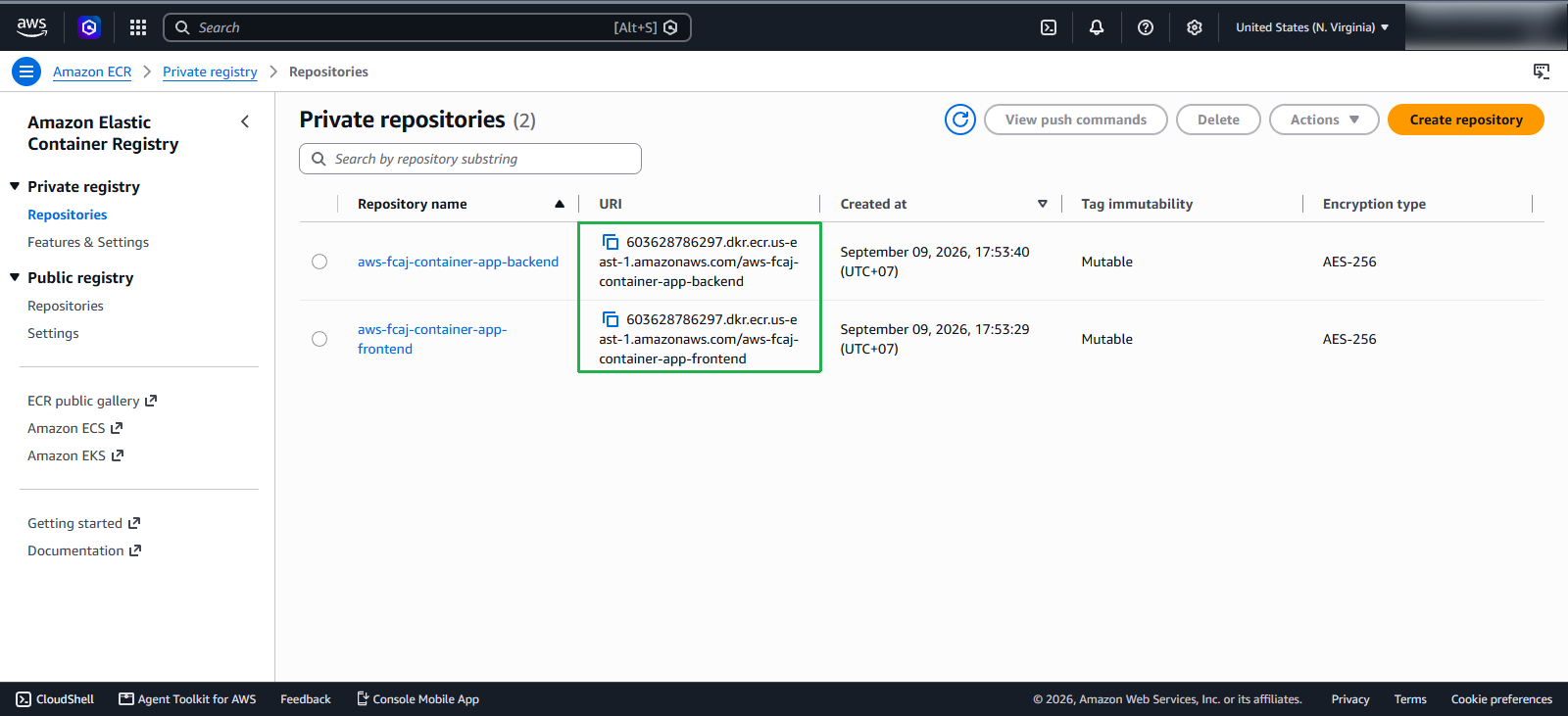
First, go to the Amazon ECR Console interface:
- In the Private repositories list, locate the frontend repository named aws-fcaj-container-app-frontend
- Copy its URI
Go back to the EC2 instance that we SSH into earlier:
- Navigate to the project directory and enter the frontend folder:
cd /project/aws-fcaj-container-app/frontend
- Build the frontend Docker image using Dockerfile.prod:
sudo docker build . -t "image-uri":latest -f Dockerfile.prod
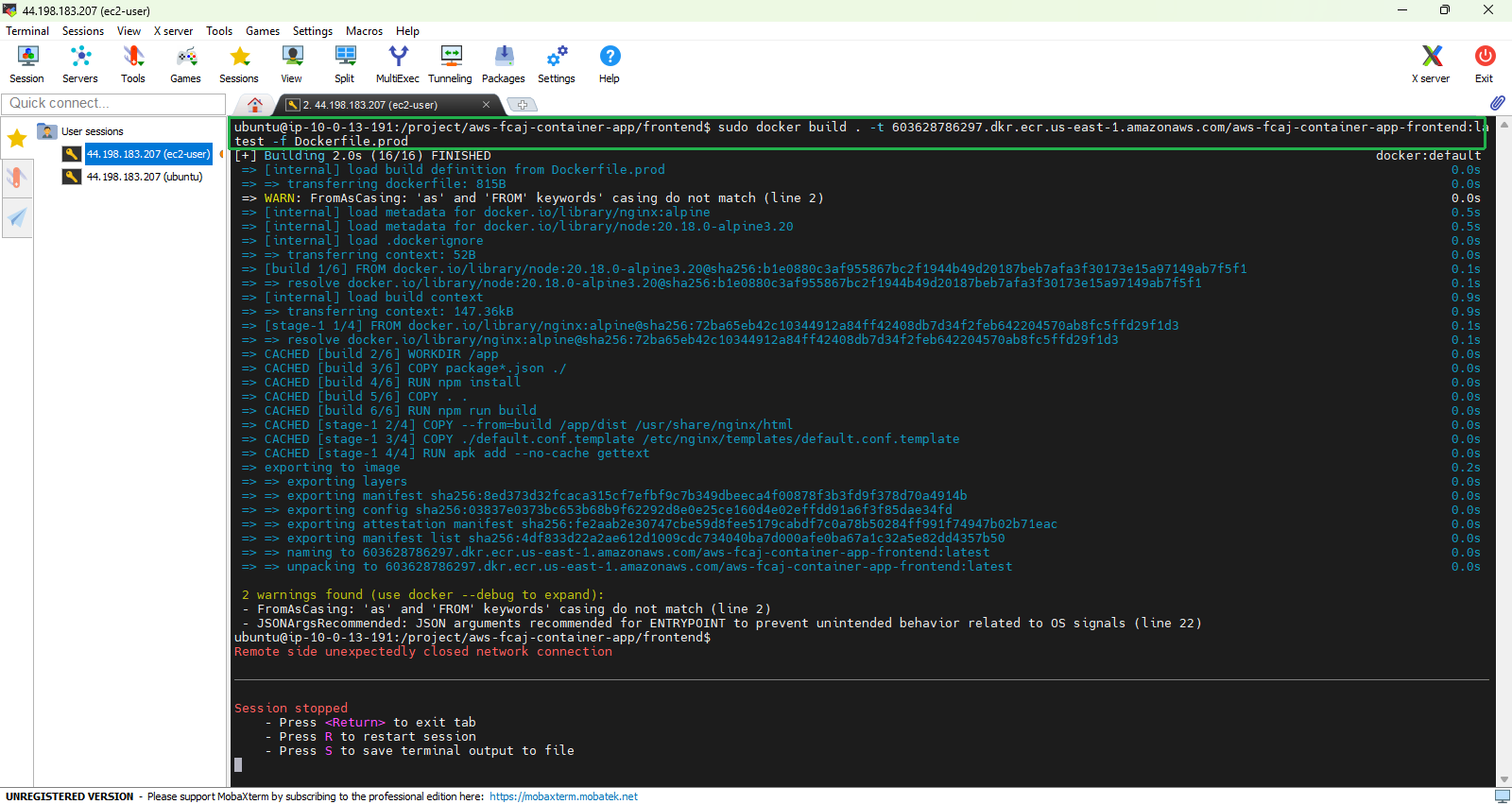
In this frontend directory, you’ll notice there are two Docker files: Dockerfile and Dockerfile.prod, as well as two nginx config files: default.conf and default.conf.template. The difference with Dockerfile.prod is that Docker will copy the default.conf.template file to the /etc/nginx/templates directory so that during the build process, the envsubst command can be used to replace the ${BACKEND_HOST} and ${BACKEND_PORT} parameters in the default.conf.template file. Once these parameters are replaced, the template file will be used by nginx for configuration. I will explain these two parameters more clearly when configuring them later.
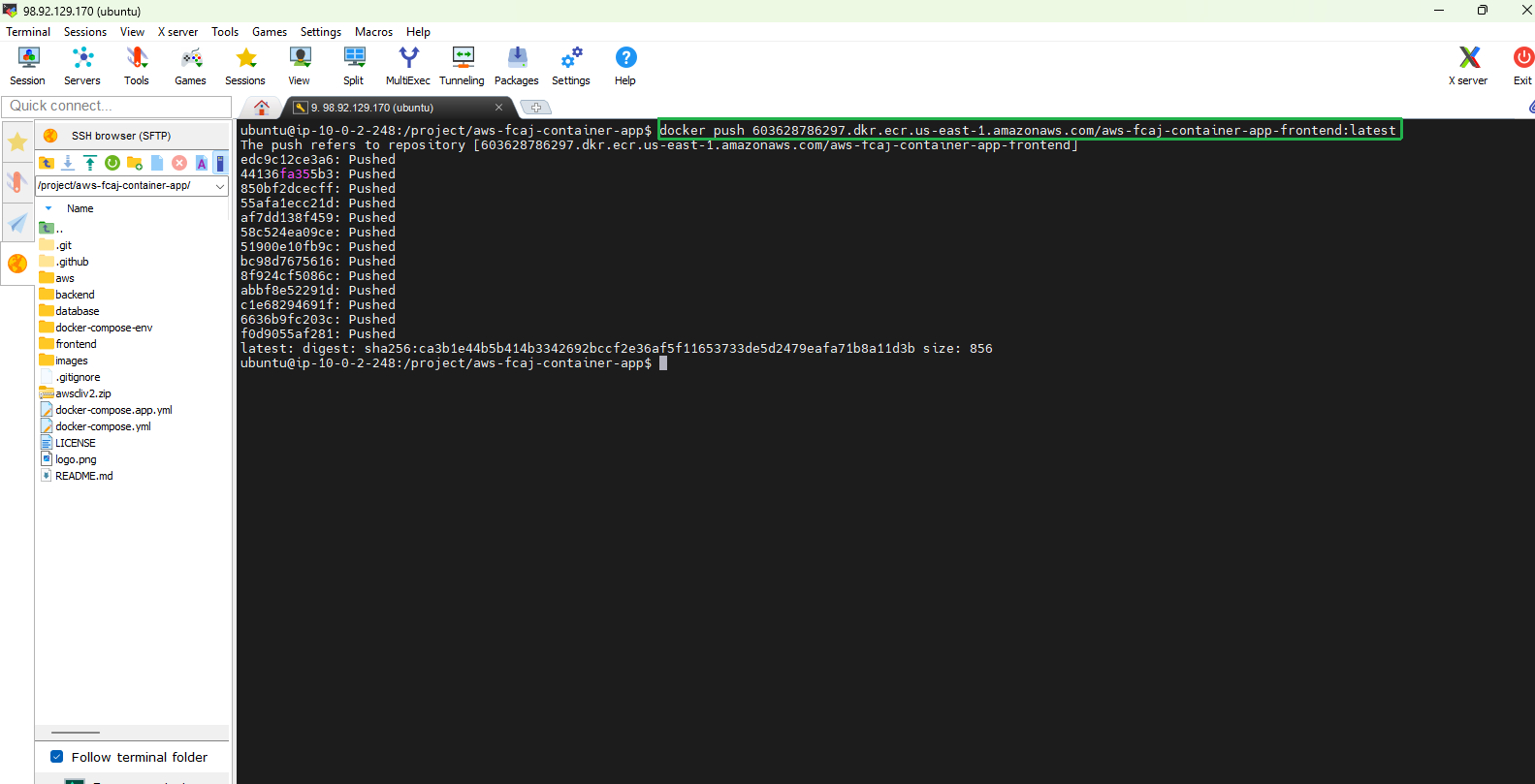
- After building and tagging the image with the ECR repository URI, push the image to Amazon ECR (switch to Root User or run with
sudo):
sudo docker push "image-uri":latest
 Now, go back to the ECR Console:
- Open the frontend repository named aws-fcaj-container-app-frontend to verify that the image with tag
latesthas been successfully pushed.
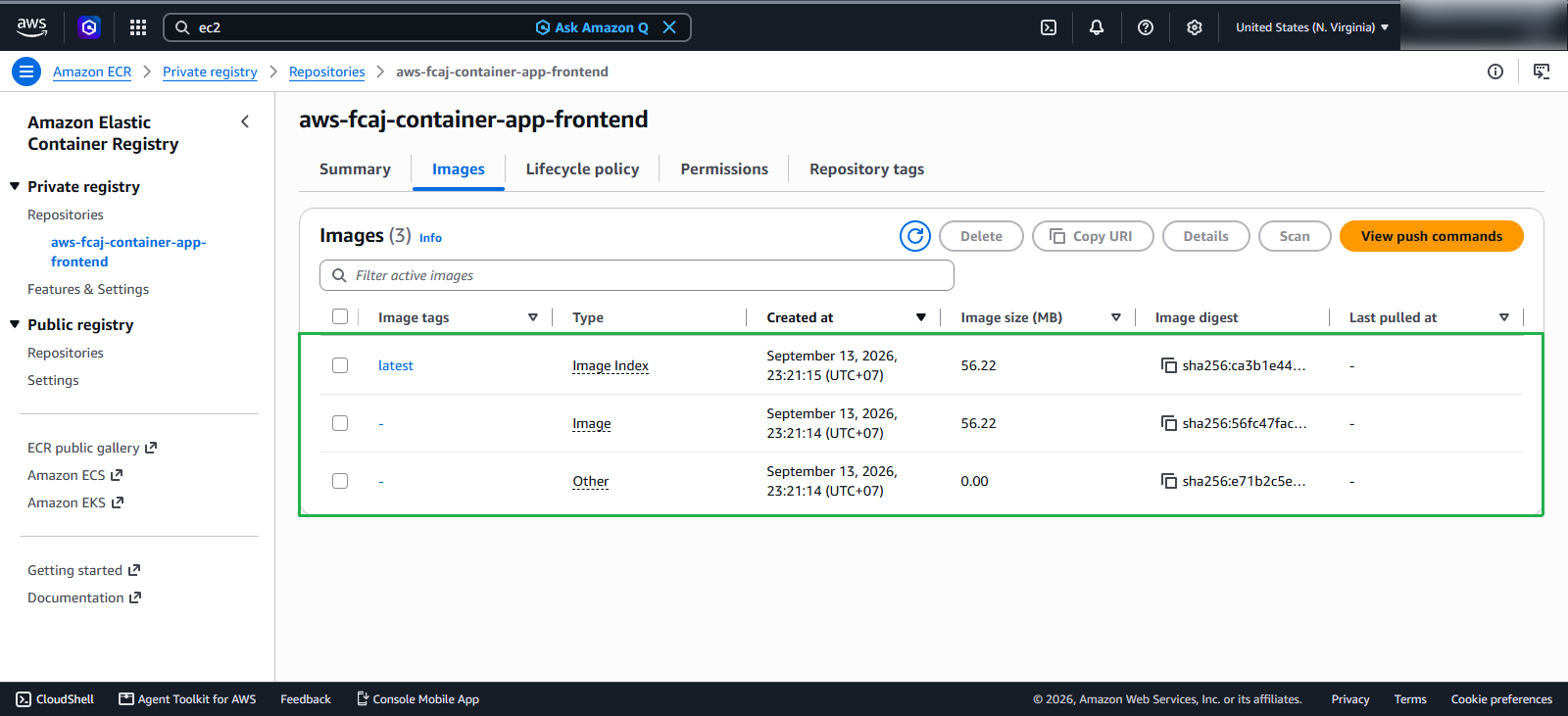
Ok, now we’ve successfully pushed the new image to ECR. In this tutorial, I’ll use latest to tag the Docker image, but you should ideally version each tag you change to manage versions more effectively. You can learn more here: https://semver.org/