Configure Route Table
Overview
In the previous step, we successfully deployed a NAT Gateway in our public subnet. However, subnets do not automatically know how to route their traffic to the NAT Gateway. We must explicitly instruct the VPC network by updating the Route Tables.
A Route Table contains a set of rules (called routes) that determine where network traffic from your subnet or gateway is directed:
- Local Route (10.0.0.0/16 -> local): By default, each route table includes a local route that enables communication between resources within the same VPC.
- Internet Route (0.0.0.0/0 -> NAT Gateway): By adding a route destined for 0.0.0.0/0 pointing to our NAT Gateway, any traffic from private subnets heading toward external internet addresses is forwarded directly to the NAT Gateway.
In this step, we will update the route tables for both Private Subnet 1 and Private Subnet 2 to route outbound internet traffic through our fcaj-nat gateway.
Step 1: Configure Route for Private Subnet 1
First, configure the route table associated with Private Subnet 1 (fcaj-lab-rtb-private1-us-east-1a).
- Open the Amazon VPC Console at https://console.aws.amazon.com/vpc/.
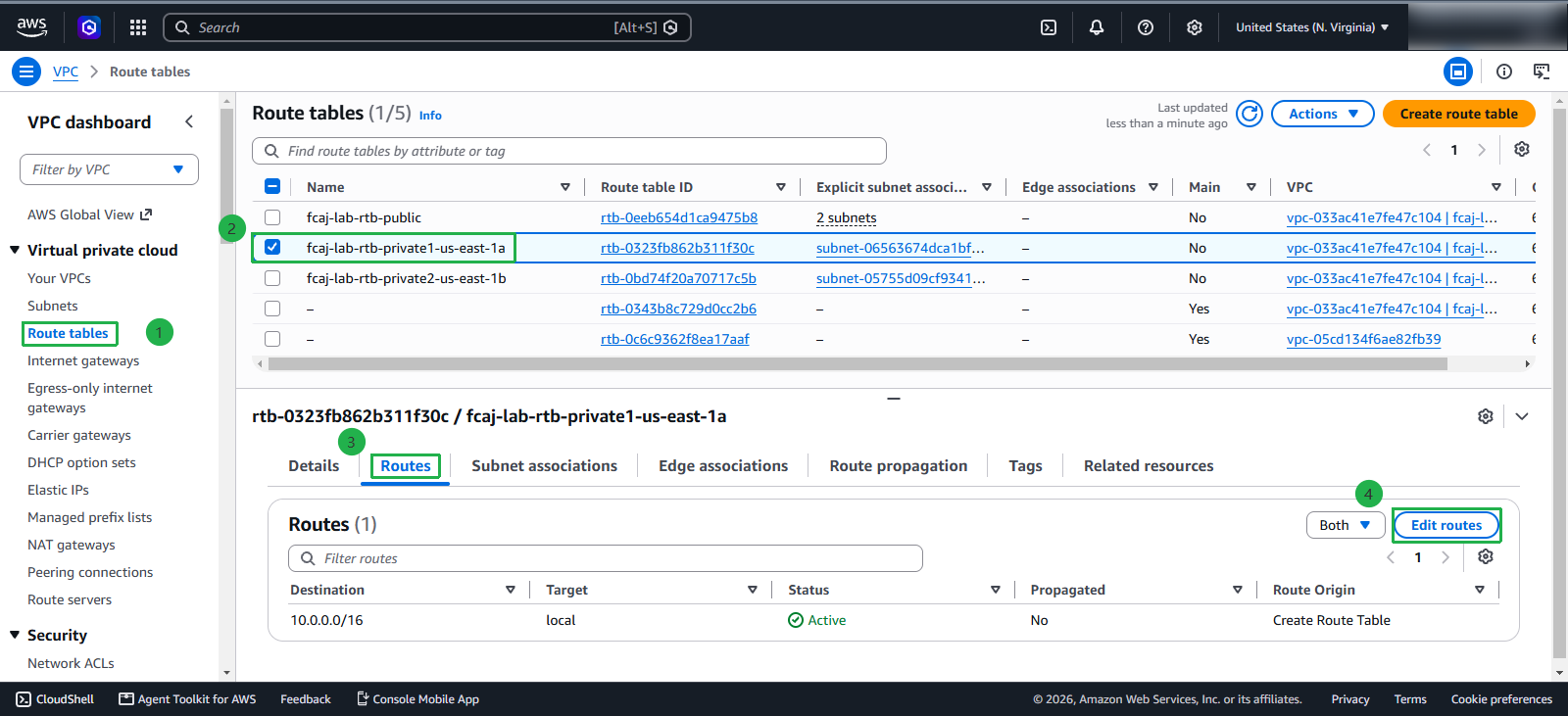
- In the left navigation pane under Virtual private cloud, select Route tables.
- Select the route table for Private Subnet 1: fcaj-lab-rtb-private1-us-east-1a
- In the lower details panel, select the Routes tab.
- Click the Edit routes button.
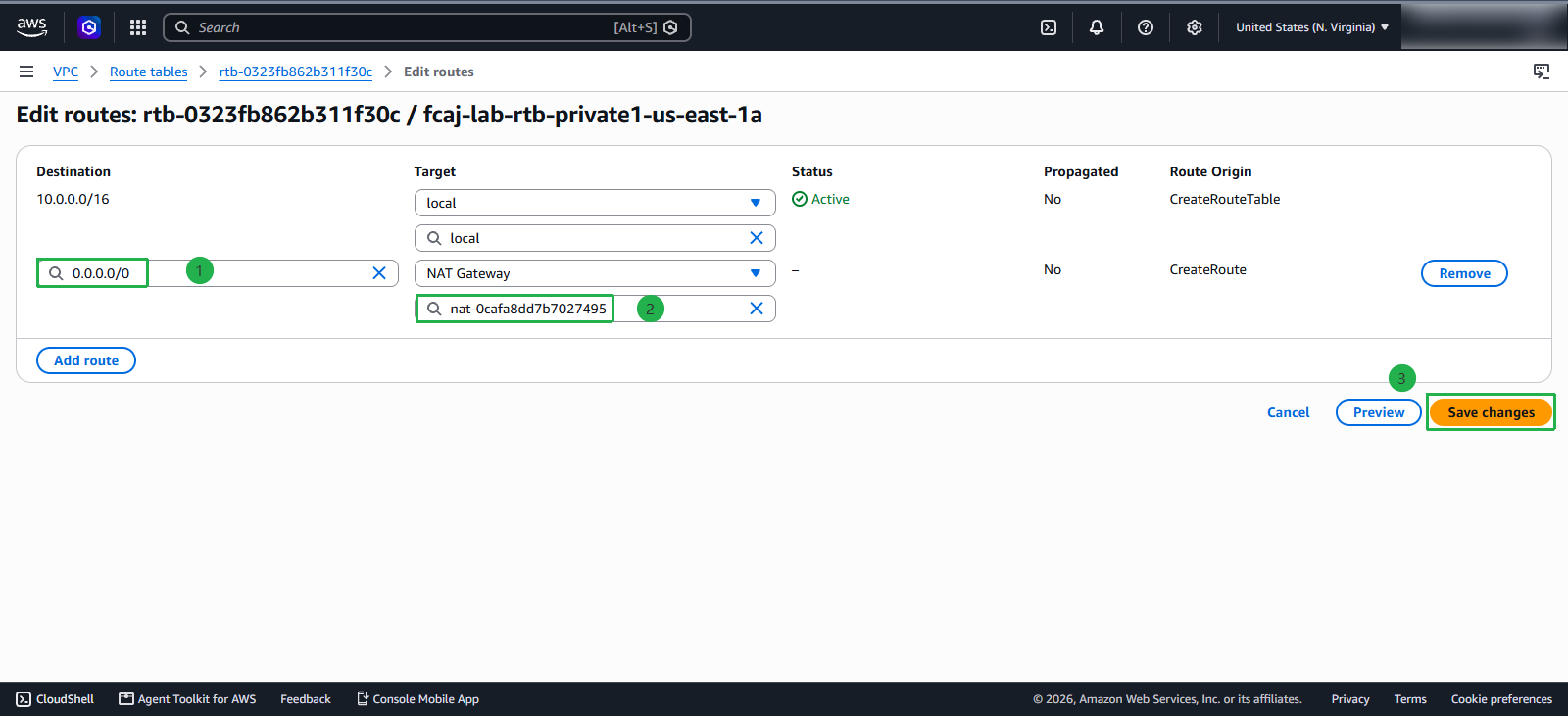
- On the Edit routes page:
- Click the Add route button.
- In the Destination field, enter 0.0.0.0/0
- In the Target dropdown, select NAT Gateway, then choose the fcaj-nat gateway created in step 2.2
- Click Save changes at the bottom right.
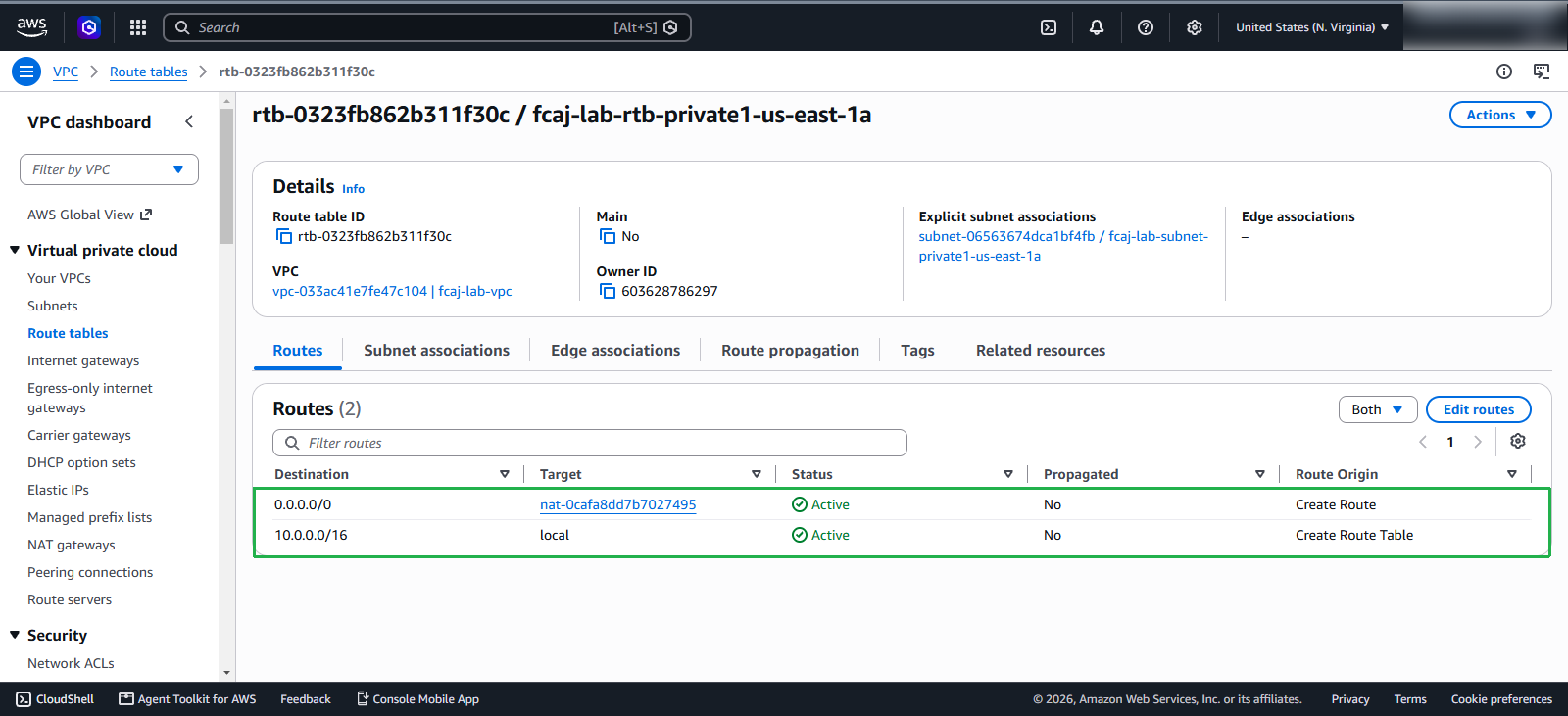
- Review the Routes tab for fcaj-lab-rtb-private1-us-east-1a. You should now see two active routes:
- 10.0.0.0/16 targeting local (Status: Active).
- 0.0.0.0/0 targeting your NAT Gateway ID (Status: Active).
Step 2: Configure Route for Private Subnet 2
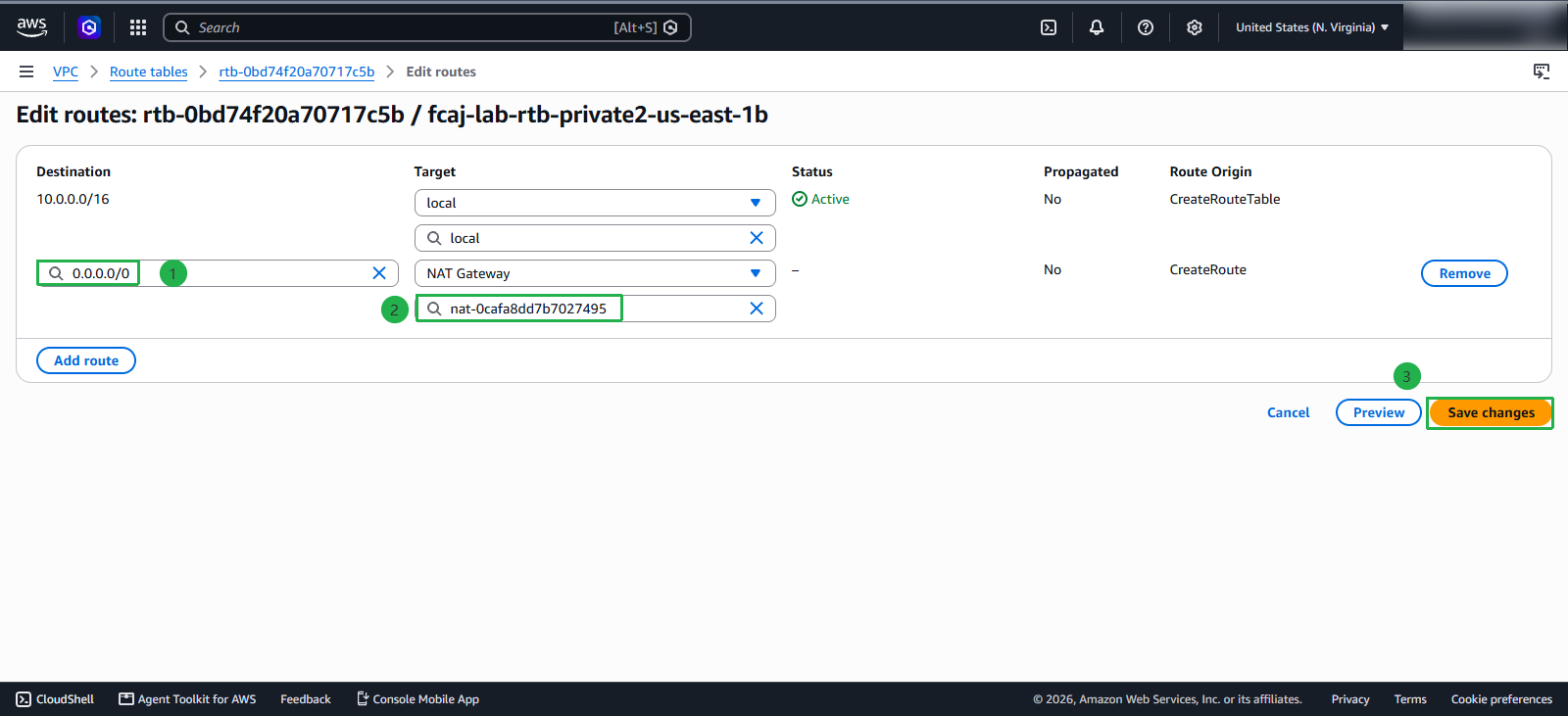
Next, repeat the same procedure for the route table associated with Private Subnet 2 (fcaj-lab-rtb-private2-us-east-1b) so that resources in the second Availability Zone can also reach the internet.
- In the Route tables list, select the second private route table: fcaj-lab-rtb-private2-us-east-1b.
- Select the Routes tab in the lower details panel and click Edit routes.
- Click Add route.
- In Destination, enter 0.0.0.0/0.
- In Target, select NAT Gateway, and choose the same fcaj-nat gateway.
- Click Save changes.
- Verify that both routes are displayed with status Active.