Configure NAT Gateway
Overview
In modern cloud architecture, security best practices recommend placing application workloads (such as backend services and database instances) inside Private Subnets. This ensures that they cannot be directly reached or targeted from the public internet.
However, backend services and container tasks still require outbound internet access in order to:
- Pull container images from registries and download software dependencies.
- Communicate with AWS service endpoints (such as Amazon ECR, Amazon CloudWatch Logs, and AWS Secrets Manager).
- Send requests to external third-party APIs.
A NAT Gateway (Network Address Translation Gateway) solves this challenge: it allows instances and containers in private subnets to send outbound traffic to the internet, while strictly preventing external internet users from initiating inbound connections to those private resources.
In this section, we will:
- Allocate an Elastic IP (EIP) address for the NAT Gateway.
- Create and configure a Public NAT Gateway located in our public subnet.
What is an Elastic IP (EIP)?
An Elastic IP address is a static, public IPv4 address allocated to your AWS account. A public NAT Gateway requires a dedicated Elastic IP so that outbound packets from your private subnets have a consistent, valid public IP address when communicating across the internet.
Step 1: Allocate an Elastic IP
Before creating a public NAT Gateway, you must allocate a public IPv4 address (Elastic IP) from Amazon’s pool.
- Open the Amazon VPC Console at https://console.aws.amazon.com/vpc/.
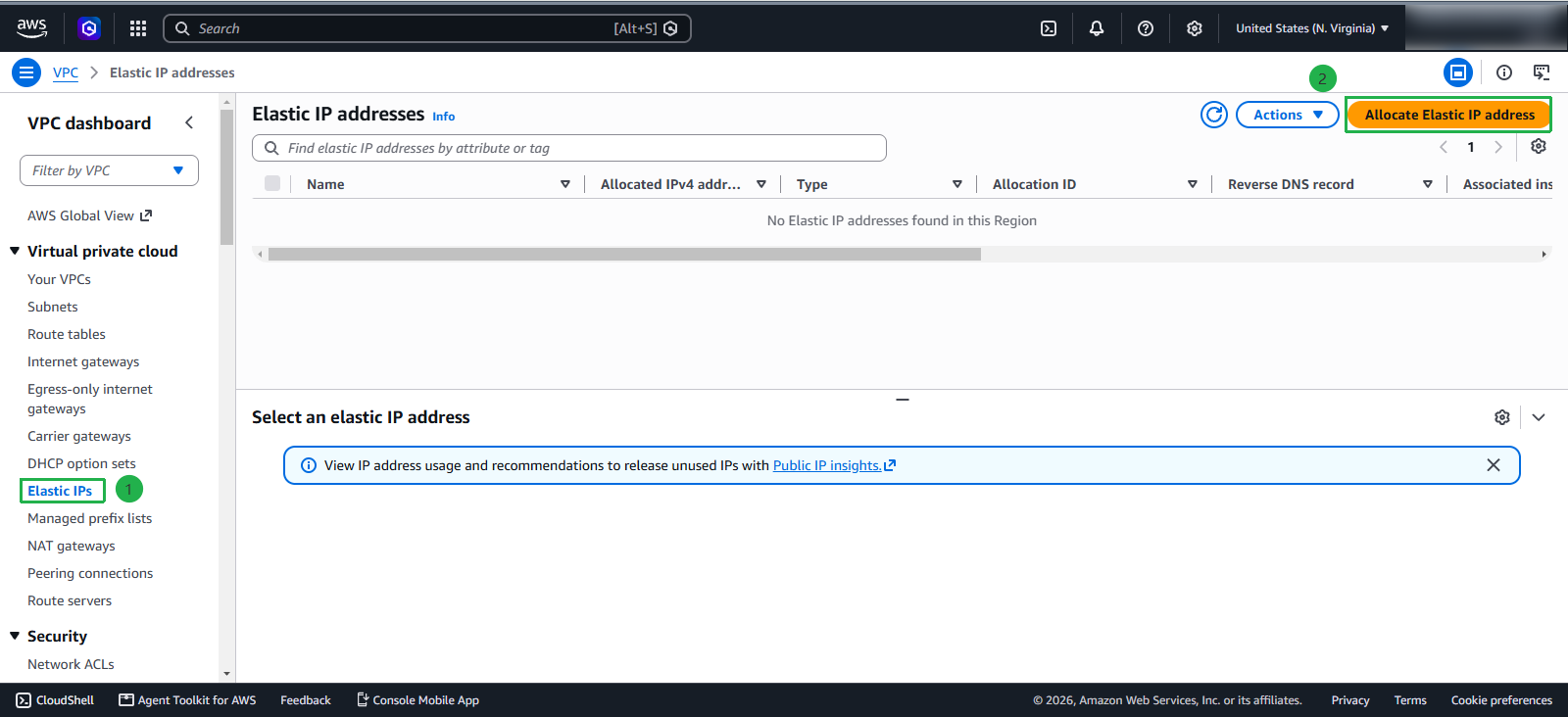
- In the left navigation pane under Virtual private cloud, select Elastic IPs.
- Click the Allocate Elastic IP address button at the top right.
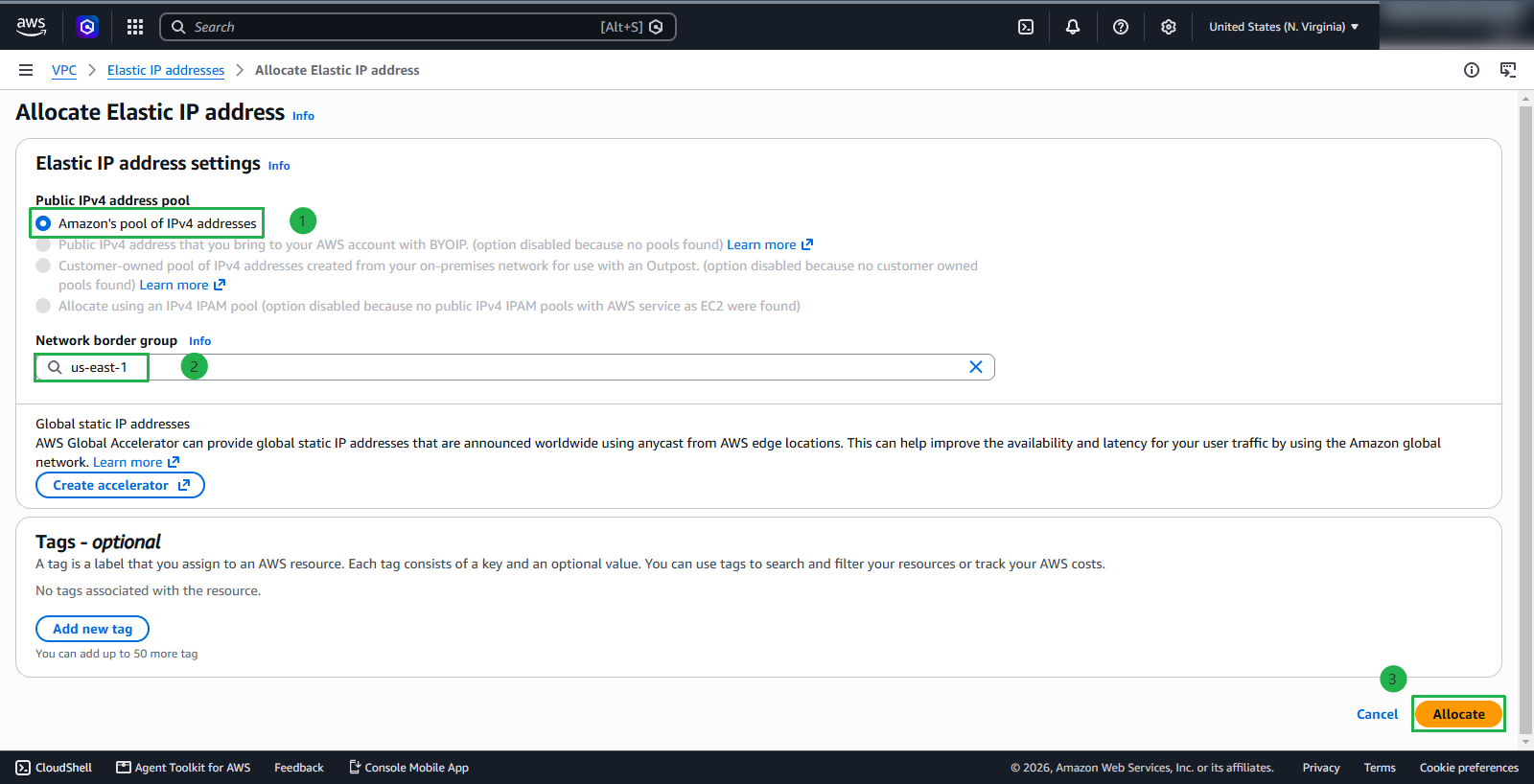
- On the Allocate Elastic IP address configuration page:
- Public IPv4 address pool: Keep the default option, Amazon’s pool of IPv4 addresses.
- Network border group: Ensure your active workshop region is selected (us-east-1).
- (Optional) In the Tags section, click Add new tag, set Key to
Nameand Value toFCAJ-Lab-IPto keep your resources easily identifiable.
- Click Allocate at the bottom right.
Step 2: Create the NAT Gateway
Now that you have an allocated Elastic IP, you can proceed to create the NAT Gateway.
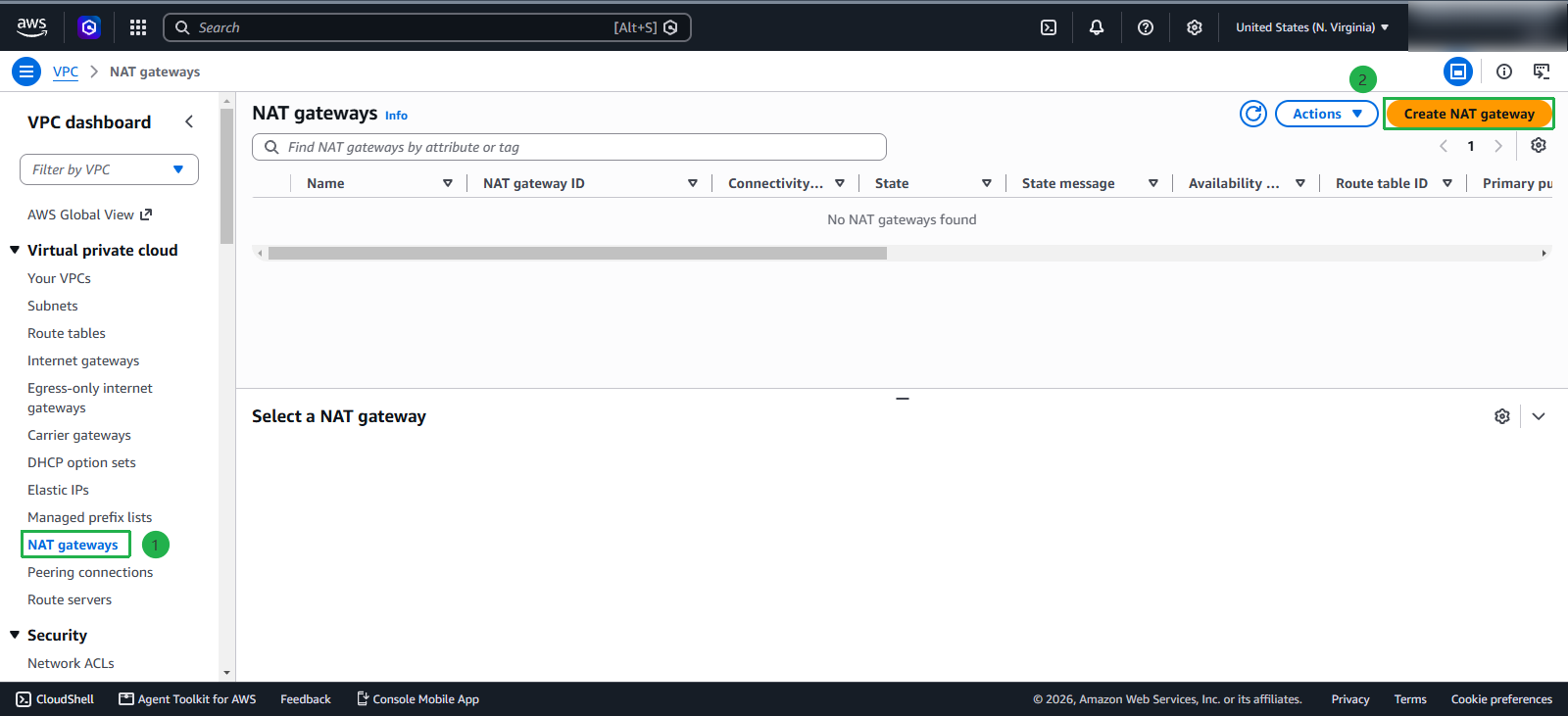
- In the left navigation pane under Virtual private cloud, select NAT gateways.
- Click the Create NAT gateway button at the top right.
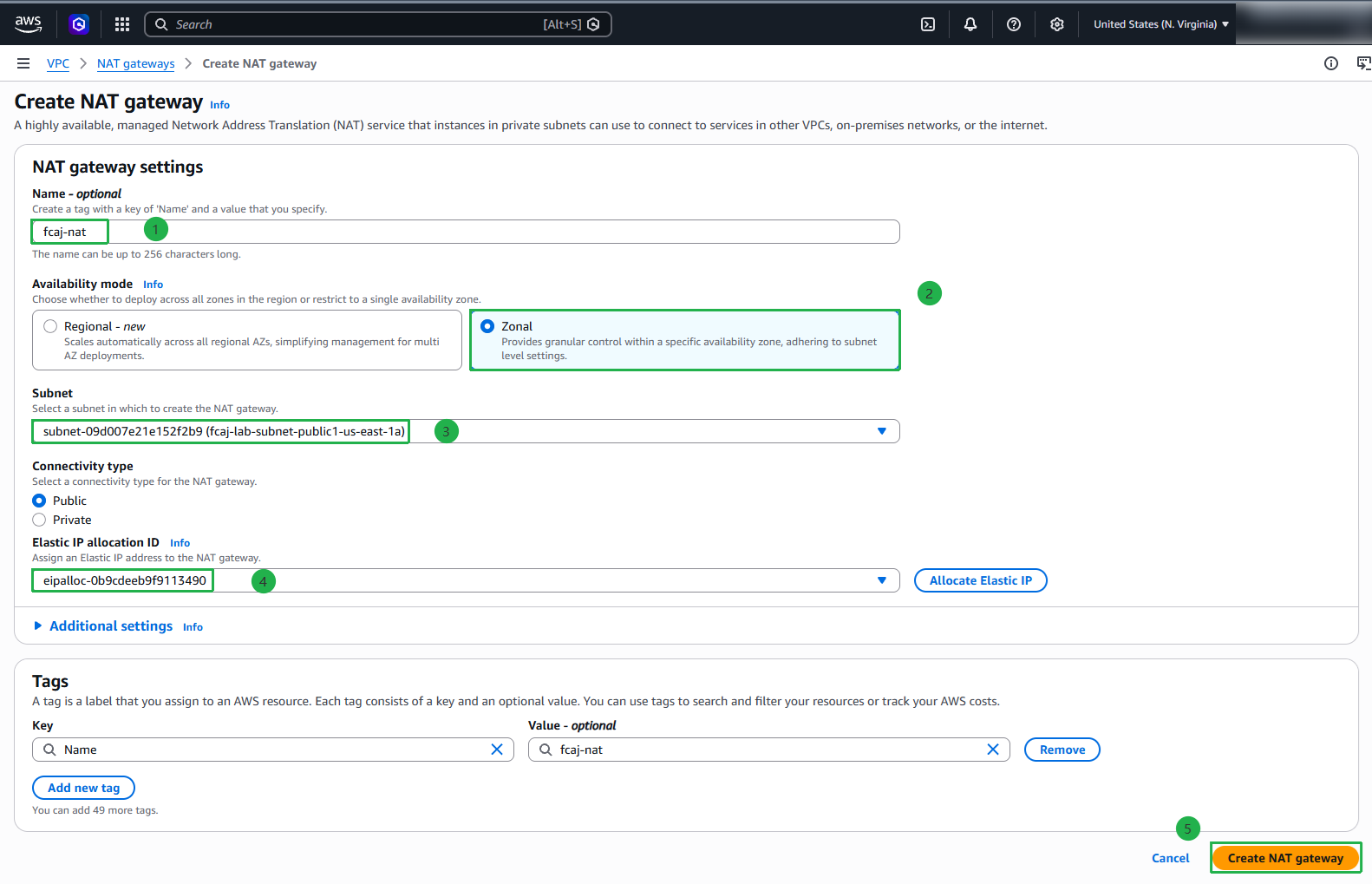
- Configure the NAT Gateway settings as follows:
- Name - optional: Enter
fcaj-nat. - Availability mode: Choose Zonal
- Subnet: Select your Public Subnet (fcaj-lab-subnet-public1-us-east-1a)
- Connectivity type: Ensure Public is selected.
- Elastic IP allocation ID: Select the Elastic IP you allocated in Step 1 from the dropdown list.
- Name - optional: Enter
- Review all settings and click Create NAT gateway.
A public NAT Gateway must always be placed in a Public Subnet (a subnet whose route table directs 0.0.0.0/0 traffic to an Internet Gateway). If you accidentally place the NAT Gateway in a private subnet, it cannot reach the internet, and your private subnet resources will remain unable to connect
Step 3: Verify NAT Gateway Status
After clicking Create NAT gateway, you will be taken to the NAT Gateway details page.
- Observe the State column. Initially, it will display Pending.
- It typically takes 1 to 3 minutes for AWS to provision and initialize the gateway.
- Click the refresh button periodically until the State changes to Available.
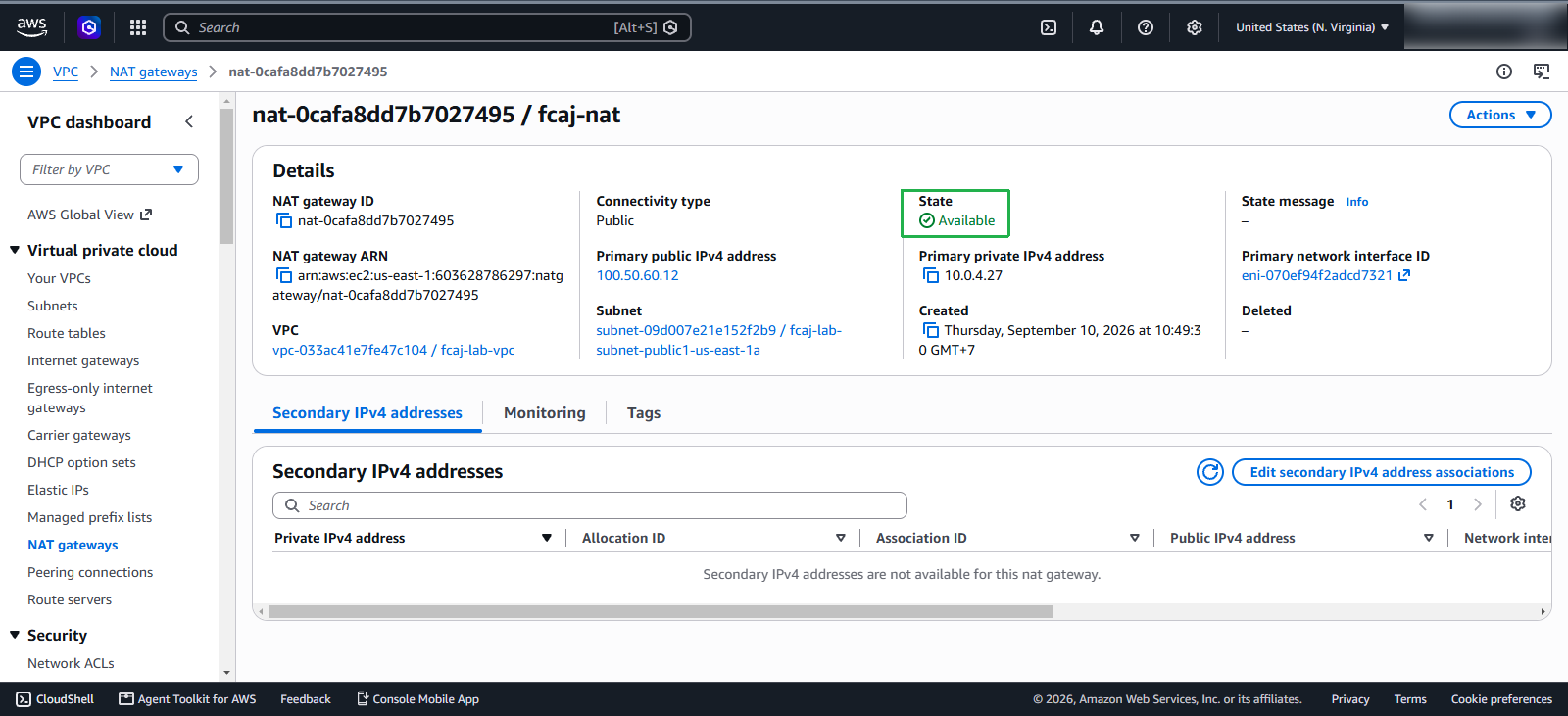
Please be patient and wait until the NAT Gateway status displays Available before continuing to the next section (Route Table configuration). Attempting to route traffic through a gateway that is still in the Pending state will result in connection drops.
In production environments, it is best practice to deploy one NAT Gateway per Availability Zone (Multi-AZ) to achieve fault tolerance. However, for workshop scenarios, a single NAT Gateway shared across private subnets is ideal to avoid redundant hourly charges.
NAT Gateways are billed on an hourly basis (approx. $0.045/hour in us-east-1) in addition to data processing fees per gigabyte. Unattached Elastic IPs also incur a small hourly fee if they are allocated but not associated with an active resource. Remember: When you finish the entire workshop, make sure to delete the NAT Gateway and release the allocated Elastic IP to avoid unexpected AWS charges.